Quick Pub/Sub Testing for Oracle Advanced Queuing With a Command Line Interface (CLI)
I have been spending a lot of time playing around with Oracle Advanced Queuing (AQ) lately and one of the things that has bothered me is the lack of a Command Line Interface (CLI) that can quickly test message enqueuing (publishing) and dequeuing (subscribing). It can be tedious to spin up an entire sample application just to publish a few messages to see if your queue is working as expected. I’ve spent a good amount of time working with other messaging solutions - from MQTT to Kafka - and just about every one of them have some sort of CLI that can be used for this purpose. So, instead of just complaining about it on Twitter, I decided to build one! The CLI was built with Micronaut (using Picocli) and converted to a native image with Graal (with support for Windows, Mac and Linux). I won’t go into the details of how I built the CLI in this post, but you’re more than welcome to check out the source code on GitHub. Instead, let’s take a look at how to use it! Here’s what we’ll cover in this post:
Download and Install
To get started, download the latest release (v0.0.1 as of this post). Depending on your OS, you might have to make the binary executable and/or move it to your path for easier invocation. Once that’s done, we’re ready to use it! Yay for quick and easy download and install! I’ve downloaded the Mac version, and added it to my path so that I can execute it with aq.
How to Use the CLI
It’s not difficult to use. There are two commands: enqueue and dequeue. You’ll also need to pass credentials so the CLI can authenticate. That can be done in one of three ways:
- Using a wallet (automatically downloaded for you)
- Using TLS and a Connect String
- Using a direct connection (host, port, service name)
We’ll go over examples of each of these auth types below. To get help at anytime, just use aq --help which will output a help doc that looks like so:
Usage: aq-cli [-hvV] [-c=<connectString>] [-H=<host>] [-i=<ociProfilePath>]
              [-o=<ocid>] [-O=<ociProfile>] -p=<password> [-P=<port>]
              -q=<queueName> [-s=<serviceName>] -u=<username> [-U=<url>]
              [-w=<walletPassword>] [COMMAND]
...
  -c, --connect-string=<connectString>
                      The connection string to use to connect to the DB.
  -h, --help          Show this help message and exit.
  -H, --host=<host>   The DB host name.
  -i, --oci-profile-path=<ociProfilePath>
                      The path to the OCI profile to use when using automatic
                        wallet download
  -o, --ocid=<ocid>   If provided, the ADB OCID will be used to automatically
                        download Autonomous DB wallet
  -O, --oci-profile=<ociProfile>
                      The OCI profile to use when using automatic wallet
                        download
  -p, --password=<password>
                      The database user's password
  -P, --port=<port>   The DB port.
  -q, --queue-name=<queueName>
                      The AQ queue name
  -s, --service-name=<serviceName>
                      The DB service name.
  -u, --username=<username>
                      The database user's username
  -U, --url=<url>     The DB
  -v, --verbose       Enable verbose output
  -V, --version       Print version information and exit.
  -w, --wallet-password=<walletPassword>
                      The ADB Wallet Password. If you do not pass a wallet
                        password, one will be generated for you.
Commands:
  enqueue  Enqueues a message to AQ
  dequeue  Dequeues messages from AQ (until interrupted with CTRL+C)
Enqueuing Messages
Enqueuing a message is done with the enqueue command.
Enqueue With an Autonomous DB Wallet
Note: To use an Autonomous DB wallet, you’ll need to have previously configured the OCI CLI and have a local config file already set up.
You’ll need your wallet OCID, the OCI profile to use, and the path to the profile.
aq enqueue -m '{"id":1, "wallet": true}' \
  -o ocid1.autonomousdatabase.oc1.phx... \
  -u aqdemouser \
  -p Passw3rdHidden! \
  -q AQDEMOADMIN.EVENT_QUEUE \
  -O DEFAULT \
  -i ~/.oci/config
Enqueue With a TLS Enabled Autonomous DB Connect String
aq enqueue -m '{"id":1, "wallet": false}' \
  -u aqdemouser \
  -p Passw3rdHidden! \
  -q AQDEMOADMIN.EVENT_QUEUE \
  -c '(description=(...))'
Enqueue With a Host, Port and Service Name
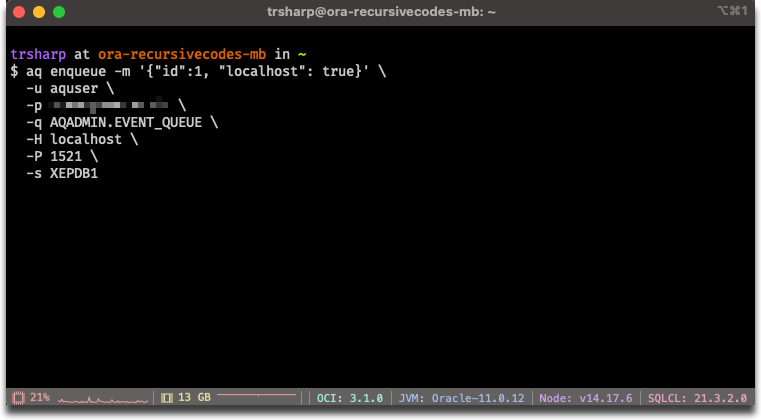
aq enqueue -m '{"id":1, "localhost": true}' \
  -u aqdemouser \
  -p Passw3rdHidden! \
  -q AQADMIN.EVENT_QUEUE \
  -H localhost \
  -P 1521 \
  -s XEPDB1
Enqueue Output
Using any of the above methods, you should see output similar to the following.
13:21:49.511 [main] INFO  codes.recursive.AqCliCommand - Connecting to queue...
13:21:49.664 [main] INFO  codes.recursive.EnqueueCommand - Enqueuing to 'AQADMIN.EVENT_QUEUE'...
13:21:49.789 [main] INFO  codes.recursive.EnqueueCommand - Message Enqueued!
Dequeuing Messages
Dequeuing is done with the dequeue command. Dequeuing messages will stream all incoming messages until you interrupt it with CTRL+C.
Dequeue With an Autonomous DB Wallet
aq dequeue \
  -o ocid1.autonomousdatabase.oc1.phx... \
  -u aqdemouser \
  -p Passw3rdHidden! \
  -q AQDEMOADMIN.EVENT_QUEUE \
  -O DEFAULT \
  -i ~/.oci/config
Dequeue With a TLS Enabled Autonomous DB Connect String
aq dequeue \
  -u aqdemouser \
  -p Passw3rdHidden! \
  -q AQDEMOADMIN.EVENT_QUEUE \
  -c '(description=(...))'
Dequeue With a Host, Port and Service Name
aq dequeue \
  -u aqdemouser \
  -p Passw3rdHidden! \
  -q AQADMIN.EVENT_QUEUE \
  -H localhost \
  -P 1521 \
  -s XEPDB1
Dequeue Output
13:28:32.312 [main] INFO  codes.recursive.AqCliCommand - Connecting to queue...
13:28:32.537 [main] INFO  codes.recursive.DequeueCommand - Dequeuing from 'AQADMIN.EVENT_QUEUE'...
13:28:32.627 [pool-2-thread-1] INFO  codes.recursive.queue.AqConsumer - {"id":1, "wallet": true}
13:28:32.635 [pool-2-thread-1] INFO  codes.recursive.queue.AqConsumer - {"id":1, "wallet": false}
13:28:32.642 [pool-2-thread-1] INFO  codes.recursive.queue.AqConsumer - {"id":1, "localhost": true}
Summary
And that’s it! Quick and easy pub/sub to AQ from a CLI. If you have any questions or suggestions, please file an issue on GitHub or leave a comment below!