Place Focus on the Oracle Cloud Console Search Box With a Keyboard Shortcut

The search box within the Oracle Cloud console dashboard is an amazingly powerful and awesome tool. I find myself using it more often than not to find resources or even navigate to other pages within the console. But, like many of you I’m sure, I find it rather annoying to have to take my fingers off of the keyboard to put focus on the search box with the mouse. So today, I finally came up with a solution that makes me quite happy and I thought I’d share it here in case there are others like me who might want to use it.
My solution utilizes Tampermonkey - one of my all-time favorite browser add-ons. Side note - if you’re not using it, you should absolutely install it because it makes it super easy to write scripts to enhance the web pages that you visit with simple JavaScript. If you want to play along at home, make sure that you have Tampermonkey installed in your browser before proceeding.
The goal here is to place focus on the search bar whenever I type the keyboard shortcut CTRL+L. I chose this particular combination because it is very similar to the CMD+L that I often use to place focus on my browser’s omnibar/omnibox.

To get started, create a new Tampermonkey userscript and update the metadata as follows.
// ==UserScript==
// @name         Oracle Cloud Console Search Bar Keyboard Shortcut
// @namespace    http://tampermonkey.net/
// @version      0.1
// @description  add a keyboard shortcut that focuses on the search bar!
// @author       [Your Name Here]
// @match        https://*.oraclecloud.com/*
// @grant        none
// ==/UserScript==
This’ll match all pages in the oraclecloud.com domain, so it’ll catch the entire console. Next we need to populate our function. It sounds simple, but the tricky part is that many of the pages within the console are actually iframe elements - so we have to get creative to capture key events. We can take advantage of the fact Tampermonkey is going to load on all pages and establish a communication between the iframe and the parent document. Here’s how:
(function() {
    'use strict';
    if (window.location.host.indexOf('console') != -1) {
        // top level
    }
    else {
        // iframe
    }
})();
Add a few booleans to make sure we’re only attaching our listeners once:
(function() {
    'use strict';
    let topListenerAttached = false;
    let frameListenerAttached = false;

    if (window.location.host.indexOf('console') != -1) {

    }
    else {

    }
})();
Next, in the portion that will execute for the top level page, declare functions for focusSearch and blurSearch, a keydown handler that will call the proper function depending on the keys (CTRL+L to focus, ESC to blur) and attach the listener for the top level.
(function() {
    'use strict';
    let topListenerAttached = false;
    let frameListenerAttached = false;

    if (window.location.host.indexOf('console') != -1) {
        const focusSearch = (fromIframe) => {
        };
        const blurSearch = (fromIframe) => {
        };
        const keydown = (e) => {
            e.stopPropagation();
            if (e.ctrlKey && e.key === 'l') {
                focusSearch(false);
            }
            if(e.keyCode == 27){
                blurSearch();
            }
        };
        if(!topListenerAttached) {
            window.addEventListener('keydown', keydown, true);
            topListenerAttached = true;
        }

    }
    else {

    }
})();
Now let’s modify the iframe portion. We’ll need a keydown listener, but we’ll have to use the postMessage API to tell the top level page about the event since cross domain policy restricts us from manipulating the parent DOM directly from an iframe. We’ll listen for the message event in the top level and call focusSearch.
(function() {
    'use strict';
    let topListenerAttached = false;
    let frameListenerAttached = false;

    if (window.location.host.indexOf('console') != -1) {
        const focusSearch = (fromIframe) => {
        };
        const blurSearch = (fromIframe) => {
        };
        const keydown = (e) => {
            e.stopPropagation();
            if (e.ctrlKey && e.key === 'l') {
                focusSearch(false);
            }
            if(e.keyCode == 27){
                blurSearch();
            }
        };
        if(!topListenerAttached) {
            window.addEventListener('keydown', keydown, true);
            window.addEventListener('message', (e) => {
                if( e.data == 'iframe keydown'){
                    focusSearch(true);
                }
            });
            topListenerAttached = true;
        }
    }
    else {
        const keydown = (e) => {
            e.stopPropagation();
            if (e.ctrlKey && e.key === 'l') {
                window.top.postMessage('iframe keydown', '*');
            }
        };
        if(!frameListenerAttached){
            window.addEventListener('keydown', keydown, true);
            frameListenerAttached = true;
        }
    }
})();
Finally, populate our focusSearch and blurSearch functions to do what they need to do! Here’s the entire script:
(function() {
    'use strict';
    let topListenerAttached = false;
    let frameListenerAttached = false;

    if (window.location.host.indexOf('console') != -1) {
        const focusSearch = (fromIframe) => {
            const search = fromIframe ? parent.document.querySelector('#search-input-box') : document.querySelector('#search-input-box');
            if(search) search.focus();
        };
        const blurSearch = (fromIframe) => {
            const search = fromIframe ? parent.document.querySelector('#search-input-box') : document.querySelector('#search-input-box');
            const active = fromIframe ? parent.document.activeElement : document.activeElement;
            if(search == active) search.blur();
        };
        const keydown = (e) => {
            e.stopPropagation();
            if (e.ctrlKey && e.key === 'l') {
                focusSearch(false);
            }
            if(e.keyCode == 27){
                blurSearch();
            }
        };
        if(!topListenerAttached) {
            window.addEventListener('keydown', keydown, true);
            window.addEventListener('message', (e) => {
                if( e.data == 'iframe keydown'){
                    focusSearch(true);
                }

            });
            topListenerAttached = true;
        }
    }
    else {
        // When a keypress is detected, message the parent window
        const keydown = (e) => {
            e.stopPropagation();
            if (e.ctrlKey && e.key === 'l') {
                window.top.postMessage('iframe keydown', '*');
            }
        };
        if(!frameListenerAttached){
            window.addEventListener('keydown', keydown, true);
            frameListenerAttached = true;
        }
    }
})();
[]
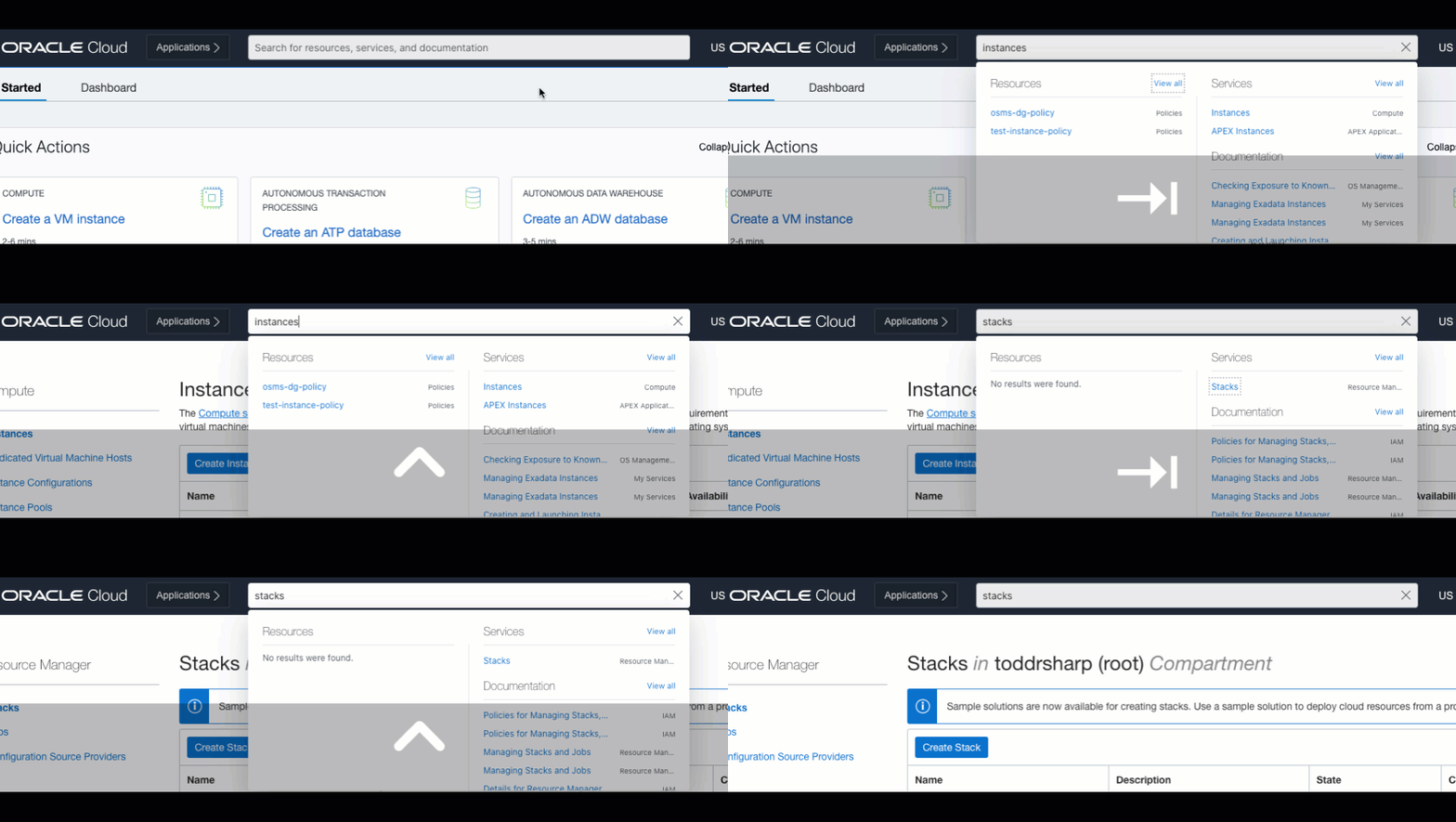
And here’s how it looks in action. Notice the key pressed in the GIF to see what I’m pressing to focus and blur the search input.
Summary
In this post, we looked at a little hack that I came up with to make my life easier when using the OCI console. If you’d like to give me feedback or just want to make sure you always know when I post other helpful tips, follow me on Twitter. Until next time, cheers!
Photo by Romain Vignes on Unsplash