Oracle Functions - Connecting To An ATP Database With A Wallet Stored As Secrets

In my last post, we talked about how to create and use your first secret on the Oracle Cloud. It was a simple, but certainly common use case where we stored a DB password in the secret and retrieve that for use in a serverless function. You’ll often need to store simple text strings like passwords and API keys in secrets, but what about binary file contents like the kind that you would find in an Autonomous DB wallet? Well, it turns out it is just as easy to use the secrets service to store these files as well, it just takes a minor extra step to write them to disk after they’ve been decrypted and before they can be used with your connections.
You may remember one of the previous entries on this blog that addressed this issue:
Note: This post represents the current best practice as it relates to connecting to an ATP Database and supersedes all previous guidance.
Let me show you how to encode, encrypt, retrieve and decrypt your Autonomous DB wallet contents and use them in a serverless function to run a query against your instance. If you haven’t yet done so, make sure you are working in the console with a user in a group with the following permissions applied:
allow group [group] to manage vaults in tenancy
allow group [group] to manage keys in tenancy
You’ll also need to apply the following service level policies:
allow service VaultSecret to use vaults in tenancy
allow service VaultSecret to use keys in tenancy
Create Wallet Secrets
Since we’re dealing with a group of files - some of which contain text content and some of which contain binary content - the first thing we’re going to need to do is base64 encode all of them. I came up with the following bash script to make that task a bit easier and write them all out to a temporary directory so that I can grab them when I need to create the secret. The script just loops over the original wallet folder and calls base64 to encode the contents and write out to the temp file.
mkdir /tmp/base64-wallet
for f in /wallet/*
do
   fname=$(basename $f)
   echo $fname
   x=$(base64 -i $f -o /tmp/base64-wallet/$fname)
   #echo $f: $x
done
Now it’s just a matter of heading to the Oracle Cloud console and creating a secret that represents each file. First I copy the encoded content like so:
$ more cwallet.sso | pbcopyThen I head to the console and create the secret, choosing ‘Base64’ as the ‘Secret Type Template’ and pasting the encoded content.
Make sure there are no extra line breaks or whitespace in the secret contents!
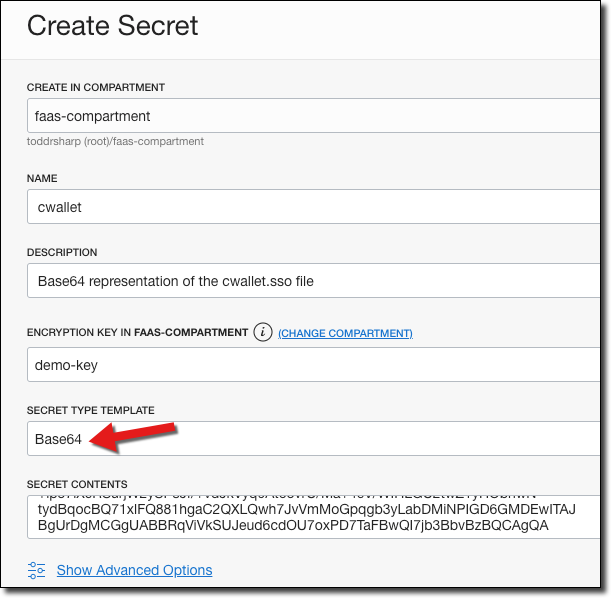
Create a secret for each of the wallet files as well as for your ATP DB password and copy the OCID of each secret for use later on.
If you prefer working with the CLI, you can also create your secrets via the OCI CLI. You’ll need the OCID of your vault, key and compartment to do so. Here’s an example of creating a secret in a vault encrypted by my demo-key containing the base64 encoded string “hunter2”:
$ oci vault secret create-base64 \
        --compartment-id ocid1.compartment.oc1... \
        --secret-name TEST_1 \
        --vault-id ocid1.vault.oc1... \
        --key-id ocid1.key.oc1... \
        --region us-phoenix-1 \
        --secret-content-content aHVudGVyMg==
Create Serverless Application & Function
Let’s create a serverless application to work with:
$ fn create app oci-adb-jdbc-java-app --annotation oracle.com/oci/subnetIds='["ocid1.subnet.oc1.phx..."]'Next, create the function. If you’re new to serverless functions on the Oracle Cloud, check out the following videos:
- Getting Your Tenancy Ready For Serverless On The Oracle Cloud
- Creating Your First Serverless Function On The Oracle Cloud
Create your function:
$ fn init --runtime java oci-adb-jdbc-java-secretsAdd the OCIDs of your secrets and your DB URL and username to the function configuration:
fn config app oci-adb-jdbc-java-app DB_URL jdbc:oracle:thin:\@[tns_name]]\?TNS_ADMIN=/tmp/wallet
fn config app oci-adb-jdbc-java-app DB_USER [user]
fn config app oci-adb-jdbc-java-app PASSWORD_ID ocid1.vaultsecret.oc1.iad...
fn config app oci-adb-jdbc-java-app CWALLET_ID ocid1.vaultsecret.oc1.iad...
fn config app oci-adb-jdbc-java-app EWALLET_ID ocid1.vaultsecret.oc1.iad...
fn config app oci-adb-jdbc-java-app KEYSTORE_ID ocid1.vaultsecret.oc1.iad...
fn config app oci-adb-jdbc-java-app OJDBC_ID ocid1.vaultsecret.oc1.iad...
fn config app oci-adb-jdbc-java-app SQLNET_ID ocid1.vaultsecret.oc1.iad...
fn config app oci-adb-jdbc-java-app TNSNAMES_ID ocid1.vaultsecret.oc1.iad...
fn config app oci-adb-jdbc-java-app TRUSTSTORE_ID ocid1.vaultsecret.oc1.iad...
You should also set some environment variables to match these values for use locally when running tests.
We’ll need to use the OCI SDK, so add the following dependencies:
<dependency>
    <groupId>com.oracle.oci.sdk</groupId>
    <artifactId>oci-java-sdk-vault</artifactId>
    <version>1.15.3</version>
</dependency>
<dependency>
    <groupId>com.oracle.oci.sdk</groupId>
    <artifactId>oci-java-sdk-secrets</artifactId>
    <version>1.15.3</version>
</dependency>
<dependency>
    <groupId>com.oracle.oci.sdk</groupId>
    <artifactId>oci-java-sdk-common</artifactId>
    <version>1.15.3</version>
</dependency>
Don’t forget the OJDBC driver dependency:
<dependency>
    <groupId>com.oracle.ojdbc</groupId>
    <artifactId>ojdbc8</artifactId>
    <version>19.3.0.0</version>
</dependency>
If you’re using anything above Java 8, don’t forget the following dependency.
<dependency>
    <groupId>com.sun.activation</groupId>
    <artifactId>jakarta.activation</artifactId>
    <version>1.2.1</version>
</dependency>
We’re going to use Resource Principal authentication in our function to work with the secret service, so make sure that you have a dynamic group and the proper policies in place. To do this, first create a dynamic group. I like to include all resources within a specific compartment in my dynamic group, so the definition would look like so:
ALL{resource.type='fnfunc', resource.compartment.id='ocid1.compartment.xxxxx'}Next, give the proper polices to the dynamic group (this can be applied at the tenancy or the compartment level):
allow dynamic-group functions-dynamic-group to read secret-family in tenancyNow let’s move on to the function handler. The full source code for this blog post is available on GitHub for reference. I’ve renamed my package and class here to be more appropriate. The first thing that we’ll need to do is declare some variables for use in our class.
We need to declare a path to store our wallet files on the function’s Docker image. The only place we have write access to is the /tmp directory, so we’ll use that. We also need to store the DB username and URL so we’ll grab the values that we set into the function’s config. These are stored as environment variables and are accessible to our function at runtime.
private final File walletDir = new File("/tmp", "wallet");
private final String dbUser = System.getenv().get("DB_USER");
private final String dbUrl = System.getenv().get("DB_URL");
Now declare some variables that we’ll use to store the decoded password and the secrets client:
private String dbPassword;
private SecretsClient secretsClient;
Next, create a Map to store the OCIDs of all of our wallet files:
private final Map<String, String> walletFiles = Map.of(
        "cwallet.sso",  System.getenv().get("CWALLET_ID"),
        "ewallet.p12",  System.getenv().get("EWALLET_ID"),
        "keystore.jks",  System.getenv().get("KEYSTORE_ID"),
        "ojdbc.properties",  System.getenv().get("OJDBC_ID"),
        "sqlnet.ora",  System.getenv().get("SQLNET_ID"),
        "tnsnames.ora",  System.getenv().get("TNSNAMES_ID"),
        "truststore.jks", System.getenv().get("TRUSTSTORE_ID")
);
Let’s create our constructor where we’ll create our auth provider and construct an instance of the secrets client. We’ll also decrypt our DB password and set that into our variable for use later on. We’ll look in-depth at the getSecret()method shortly.
public WalletSecretFunction() {
    String version = System.getenv("OCI_RESOURCE_PRINCIPAL_VERSION");
    BasicAuthenticationDetailsProvider provider = null;
    if( version != null ) {
        provider = ResourcePrincipalAuthenticationDetailsProvider.builder().build();
    }
    else {
        try {
            provider = new ConfigFileAuthenticationDetailsProvider("~/.oci/config", "DEFAULT");
        }
        catch (IOException e) {
            e.printStackTrace();
        }
    }
    secretsClient = new SecretsClient(provider);
    secretsClient.setRegion(Region.US_PHOENIX_1);
    String dbPasswordOcid = System.getenv().get("PASSWORD_ID");
    dbPassword = new String(getSecret(dbPasswordOcid));
}
Now let’s start our handleRequest() function. The first thing we’ll do in this handler is check to see if our wallet exists on the local machine (it will persist across hot invocations of our function so we don’t have to recreate it every time):
public List handleRequest() throws SQLException, JsonProcessingException {
    if( !walletDir.exists() ) {
        createWallet(walletDir);
    }
}
The createWallet()function is simple:
private void createWallet(File walletDir) {
    walletDir.mkdirs();
    for (String key : walletFiles.keySet()) {
        try {
            writeWalletFile(key);
        }
        catch (IOException e) {
            walletDir.delete();
            e.printStackTrace();
        }
    }
}
Note that we’re looping over the Map of wallet files and writing the wallet file out to our temp directory. Our writeWalletFile() method will use the wallet file OCID to retrieve the wallet secret by calling that same getSecret()method that we used in the constructor above and writing that out to a file:
private void writeWalletFile(String key) throws IOException {
    String secretOcid = walletFiles.get(key);
    byte[] secretValueDecoded = getSecret(secretOcid);
    try {
        File walletFile = new File(walletDir + "/" + key);
        FileUtils.writeByteArrayToFile(walletFile, secretValueDecoded);
        System.out.println("Stored wallet file: " + walletFile.getAbsolutePath());
    }
    catch (IOException e) {
        e.printStackTrace();
    }
}
Finally, the getSecret()method uses the OCI SDK to retrieve the decrypted and base64 encoded secret, then decodes that base64 secret returning it as a byte array:
private byte[] getSecret(String secretOcid) {
    GetSecretBundleRequest getSecretBundleRequest = GetSecretBundleRequest
            .builder()
            .secretId(secretOcid)
            .stage(GetSecretBundleRequest.Stage.Current)
            .build();
    GetSecretBundleResponse getSecretBundleResponse = secretsClient
            .getSecretBundle(getSecretBundleRequest);
    Base64SecretBundleContentDetails base64SecretBundleContentDetails =
            (Base64SecretBundleContentDetails) getSecretBundleResponse.
                    getSecretBundle().getSecretBundleContent();
    byte[] secretValueDecoded = Base64.decodeBase64(base64SecretBundleContentDetails.getContent());
    return secretValueDecoded;
}
We’re now ready to modify our handleRequest() method to run our query (note that our DB URL pointed the TNS_ADMIN variable at our /tmp/wallet directory so we’re good to create a connection and run a query). Here’s the rest of the handleRequest()method:
public List handleRequest() throws SQLException, JsonProcessingException {
    if( !walletDir.exists() ) {
        createWallet(walletDir);
    }
    Connection conn = DriverManager.getConnection(dbUrl,dbUser,dbPassword);
    Statement statement = conn.createStatement();
    ResultSet resultSet = statement.executeQuery("select * from employees");
    List<HashMap<String, Object>> recordList = convertResultSetToList(resultSet);
    conn.close();
    return recordList;
}
Which now will return a list of maps representing the rows returned by our query. We can add a test:
@Test
public void shouldReturnList() throws JsonProcessingException {
    testing.givenEvent().enqueue();
    testing.thenRun(WalletSecretFunction.class, "handleRequest");
    FnResult result = testing.getOnlyResult();
    List list = new ObjectMapper().readValue(result.getBodyAsString(),List.class);
    assertNotNull(list);
}
And deploy:
$ fn deploy --app oci-adb-jdbc-java-secretsAnd invoke:
$ fn invoke oci-adb-jdbc-java-app oci-adb-jdbc-java-secrets | jq
[
  {
    "EMP_NAME": "user1",
    "EMP_EMAIL": "a@a.com",
    "EMP_DEPT": "dept1"
  },
  {
    "EMP_NAME": "user2",
    "EMP_EMAIL": "b@b.com",
    "EMP_DEPT": "dept2"
  },
  {
    "EMP_NAME": "Bob Smith",
    "EMP_EMAIL": "bob@nowhere.com",
    "EMP_DEPT": "HR"
  }
]
Summary
In this post, we looked at the most secure and reliable way to store Autonomous DB wallet contents in the Oracle Cloud. We also saw how easy it is to retrieve those secrets and use them in our applications using the OCI Java SDK. Remember, you’re not limited to serverless functions or using the Java SDK. Any application using any OCI SDK version can work just as easily with the secrets service in the Oracle Cloud.
For further reference, the code for this blog post can be viewed on GitHub.
Photo by Andrea Natali on Unsplash