IaC in the Cloud: Installing Terraform and Running Your First Script

In our last post, we took a high-level look at the basics of Terraform for developers. Hopefully you’ve read that (or are already familiar with Terraform) because in this post we’re going to install Terraform and get started creating modules to interact with an Oracle Cloud Infrastructure tenancy. We will just be working with Terraform locally in this post, so the first thing we’ll need to do is download and install Terraform. Find the proper binary and install it from Hashicorp’s download page. Once it’s installed, test the installation by checking the version number. As of the date this blog post was published, this gave me the following:
$ terraform -v
Terraform v0.14.5
The OCI Terraform Provider - Installation & Authentication
You can manually download the provider, but it’s easier to let Terraform download it for you. It’ll do so if you configure a provider block, so let’s skip the manual installation for now. Before we move into the provider, be sure to bookmark the OCI Terraform Provider documentation on the Terraform registry as you’ll be using it often!
There are a few options for authenticating with the OCI Terraform Provider, but we’ll use the API Key Authentication option in this post. I like this option because if you already have the OCI CLI installed locally (and you totally should) then getting all of the required info is just a matter of reading your CLI config file.
No CLI? No problem. See the docs for where to find all of the information that you need.
Here are the bits we need to collect:
tenancy_ociduser_ocidprivate_key_pathprivate_key_password(Optional - if private key is password protected)fingerprintregion
I got these from my local machine like so:
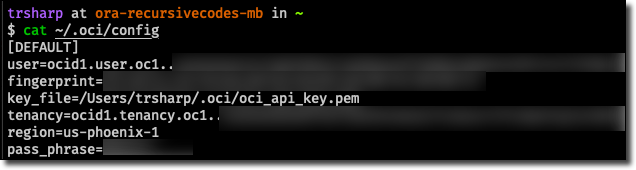
An easy way to get these values into Terraform is to set them as environment variables prefixed with TF_VAR_. This special prefix will ensure they are available within our script, so depending on your OS, make sure they are set in your environment before proceeding. For example, on my Mac, I set them inside of my .zshrc file so they are always available in my terminal. You could also create a bash script and source it as necessary. Here are the variables you’ll need to set:
export TF_VAR_tenancy_ocid=<tenancy_OCID>
export TF_VAR_compartment_ocid=<compartment_OCID>
export TF_VAR_user_ocid=<user_OCID>
export TF_VAR_fingerprint=<key_fingerprint>
export TF_VAR_private_key_path=<private_key_path>
export TF_VAR_private_key_password=<private_key_password>
export TF_VAR_region=<region>
Confirm they are set with an echo:
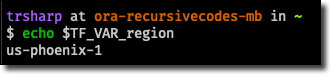
Now we can create our first .tf file! Move to an empty directory and create a file called provider.tf and open it with the IDE of your choice.
trsharp at ora-recursivecodes-mb in /projects/terraform
$ cd /projects/terraform
$ mkdir my-first-tf && cd my-first-tf
$ touch provider.tf
$ code .
Populate provider.tf and save:
provider "oci" {
    tenancy_ocid = var.tenancy_ocid
    user_ocid = var.user_ocid
    private_key_path = var.private_key_path
    private_key_password = var.private_key_password
    fingerprint = var.fingerprint
    region = var.region
}
Next, create a file called variables.tf in the same directory. We’ll use this file to declare variables in our project. Any variables that we set via environment variables won’t be accessible unless there is a corresponding declaration somewhere in our project, so declare all of the variables that we set as TF_VAR above.
variable "compartment_ocid" {}
variable "tenancy_ocid" {}
variable "user_ocid " {}
variable "private_key_path" {}
variable "private_key_password" {}
variable "fingerprint" {}
variable "region" {}
Open up a new terminal in your IDE (or back in your OS terminal) and run terraform init. The first time that you run this, Terraform will notice that you’re using the OCI Terraform provider and automatically download it for you. The output will look similar to this:
$ terraform init

Initializing the backend...

Initializing provider plugins...
- Finding latest version of hashicorp/oci...
- Installing hashicorp/oci v4.11.0...
- Installed hashicorp/oci v4.11.0 (signed by HashiCorp)

Terraform has created a lock file .terraform.lock.hcl to record the provider
selections it made above. Include this file in your version control repository
so that Terraform can guarantee to make the same selections by default when
you run "terraform init" in the future.

Terraform has been successfully initialized!

You may now begin working with Terraform. Try running "terraform plan" to see
any changes that are required for your infrastructure. All Terraform commands
should now work.

If you ever set or change modules or backend configuration for Terraform,
rerun this command to reinitialize your working directory. If you forget, other
commands will detect it and remind you to do so if necessary.
Creating & Applying Terraform Execution Plans
There are a handful of commands available in the Terraform CLI, but the three that you’ll probably use most are plan, apply and destroy (with destroy probably used least often of the three). During development, console is a handy way to evaluate and experiment with expressions (console docs).
What’s the Plan, Stan?
The plan command compares the desired state to the current state and generates an execution plan to get from current to desired. It doesn’t actually do anything - just creates a plan. You typically run a plan to validate your scripts and confirm the plan is going to do what you want it to do. In fact, run it now:
$ terraform plan

No changes. Infrastructure is up-to-date.

This means that Terraform did not detect any differences between your
configuration and real physical resources that exist. As a result, no
actions need to be performed.
Right, so since we’ve got no resources defined, there’s nothing (yet) in our plan! Let’s open up variables.tf in the same directory and define a variable called bucket_namespace with a value equal to your Object Storage namespace.
What’s My Namespace? It’s easy to figure out.
variable "bucket_namespace" {
    default = "toddrsharp"
}
Let’s take a quick look to see if our variable is set:
$ terraform console
> var.bucket_namespace
"toddrsharp"
Excellent - just as we expected! Let’s exit the terminal and create another new file. Call this one test.tf.
Oh no, I’m stuck! In the Terraform console, type help for help. Type exit to exit, or use CTRL+D or CTRL+C.
Let’s use an object storage data source to list all of the Object Storage buckets in our tenancy. In test.tf, add the following:
data "oci_objectstorage_bucket_summaries" "bucket_summaries" {
    compartment_id = var.compartment_ocid
    namespace = var.bucket_namespace
}
Now check the value of this data source in the console. Remember from our last post, data source output must be prefixed with data and then the operation type and local label.
$ terraform console
> data.oci_objectstorage_bucket_summaries.bucket_summaries
(known after apply)
Ahh, so we can’t grab this info just yet. To get the data, we must apply the plan.
How does it Apply, Guy?
It’s certainly not an impressive plan, but it’s a plan nevertheless, so let’s try to apply it. But before we do that, add an output block to print out our bucket summaries.
output "bucket_summaries" {
    value = data.oci_objectstorage_bucket_summaries.bucket_summaries
}
If we apply this plan (with terraform apply) we will see a list of bucket summary objects for each bucket in our tenancy/namespace. Let’s make it a bit easier to read by collecting a list of bucket names by using the splat syntax of Terraform:
output "bucket_summaries" {
    value = data.oci_objectstorage_bucket_summaries.bucket_summaries.bucket_summaries[*].name
}
Running the apply again, this time we get a more readable output.
Apply complete! Resources: 0 added, 0 changed, 0 destroyed.

Outputs:

bucket_summaries = tolist([
  "archive-demo",
  "barn-captures",
  "custom-images",
  "doggos",
  "insulin-helper-uploads",
  "micronaut-lab-assets",
  "object-upload-demo-public",
  "oss-storage-bucket",
  "readme-assets",
  "rocket-chat-uploads",
  "usage_reports",
  "wallet",
])
So far, we’ve still not done any actual resource creation - just some basic variable declaration, provider config, data source reading and output. Let’s get in to resource creation by adding a resource block to test.tf that will create a new bucket and output the result. We’ll also remove the data source call to list the bucket summaries since we don’t need that anymore.
resource "oci_objectstorage_bucket" "create_bucket" {
    # required
    compartment_id = var.compartment_ocid
    name = "my_new_bucket"
    namespace = var.bucket_namespace

    # optional
    access_type = "ObjectRead"
}

output "new_bucket" {
    value = oci_objectstorage_bucket.create_bucket
}
If we run terraform plan, we can see the generated plan.
$ terraform plan

An execution plan has been generated and is shown below.
Resource actions are indicated with the following symbols:
  + create

Terraform will perform the following actions:

  # oci_objectstorage_bucket.create_bucket will be created
  + resource "oci_objectstorage_bucket" "create_bucket" {
      + access_type                  = "ObjectRead"
      + approximate_count            = (known after apply)
      + approximate_size             = (known after apply)
      + bucket_id                    = (known after apply)
      + compartment_id               = "ocid1.compartment.oc1..[redacted]"
      + created_by                   = (known after apply)
      + defined_tags                 = (known after apply)
      + etag                         = (known after apply)
      + freeform_tags                = (known after apply)
      + id                           = (known after apply)
      + is_read_only                 = (known after apply)
      + kms_key_id                   = (known after apply)
      + name                         = "my_new_bucket"
      + namespace                    = "toddrsharp"
      + object_events_enabled        = (known after apply)
      + object_lifecycle_policy_etag = (known after apply)
      + replication_enabled          = (known after apply)
      + storage_tier                 = (known after apply)
      + time_created                 = (known after apply)
      + versioning                   = (known after apply)
    }

Plan: 1 to add, 0 to change, 0 to destroy.

Changes to Outputs:
  - bucket_summaries = [
      - "archive-demo",
      - "barn-captures",
      - "custom-images",
      - "doggos",
      - "insulin-helper-uploads",
      - "micronaut-lab-assets",
      - "object-upload-demo-public",
      - "oss-storage-bucket",
      - "readme-assets",
      - "rocket-chat-uploads",
      - "usage_reports",
      - "wallet",
    ] -> null
  + new_bucket       = {
      + access_type                  = "ObjectRead"
      + approximate_count            = (known after apply)
      + approximate_size             = (known after apply)
      + bucket_id                    = (known after apply)
      + compartment_id               = "ocid1.compartment.oc1..[redacted]"
      + created_by                   = (known after apply)
      + defined_tags                 = (known after apply)
      + etag                         = (known after apply)
      + freeform_tags                = (known after apply)
      + id                           = (known after apply)
      + is_read_only                 = (known after apply)
      + kms_key_id                   = (known after apply)
      + metadata                     = null
      + name                         = "my_new_bucket"
      + namespace                    = "toddrsharp"
      + object_events_enabled        = (known after apply)
      + object_lifecycle_policy_etag = (known after apply)
      + replication_enabled          = (known after apply)
      + retention_rules              = []
      + storage_tier                 = (known after apply)
      + time_created                 = (known after apply)
      + timeouts                     = null
      + versioning                   = (known after apply)
    }

------------------------------------------------------------------------

Note: You didn't specify an "-out" parameter to save this plan, so Terraform
can't guarantee that exactly these actions will be performed if
"terraform apply" is subsequently run.
This is expected - the bucket summary list is removed from the output and the plan to create a new bucket and output the result is laid out. Check out that last note though. We can choose to save our plan to disk by specifying an -out param - let’s give that a shot.
$ terraform plan -out test

[removed for brevity]

This plan was saved to: test

To perform exactly these actions, run the following command to apply:
    terraform apply "test"
So the plan was saved - let’s try to read it.
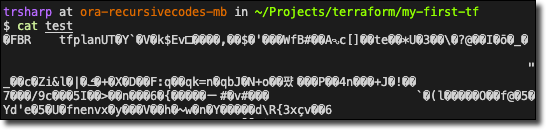
Hmm…looks like it’s binary, so, it’s no good for us to read. But, we can however apply this saved plan.
$ terraform apply test
oci_objectstorage_bucket.create_bucket: Creating...
oci_objectstorage_bucket.create_bucket: Creation complete after 1s [id=n/toddrsharp/b/my_new_bucket]

Apply complete! Resources: 1 added, 0 changed, 0 destroyed.

The state of your infrastructure has been saved to the path
below. This state is required to modify and destroy your
infrastructure, so keep it safe. To inspect the complete state
use the <code class="code-inline">terraform show</code> command.

State path: terraform.tfstate

Outputs:

new_bucket = {
  "access_type" = "ObjectRead"
  "approximate_count" = "0"
  "approximate_size" = "0"
  "bucket_id" = "ocid1.bucket.oc1.[redacted]"
  "compartment_id" = "ocid1.compartment.oc1..[redacted]"
  "created_by" = "ocid1.user.oc1..[redacted]"
  "defined_tags" = tomap({
    "Oracle-Tags.CreatedBy" = ""
    "Oracle-Tags.CreatedOn" = "2021-02-02T14:00:30.661Z"
  })
  "etag" = "b92e2a05-8d63-466b-afe3-0932605f0ce7"
  "freeform_tags" = tomap({})
  "id" = "n/toddrsharp/b/my_new_bucket"
  "is_read_only" = false
  "kms_key_id" = tostring(null)
  "metadata" = tomap(null) /* of string */
  "name" = "my_new_bucket"
  "namespace" = "toddrsharp"
  "object_events_enabled" = false
  "object_lifecycle_policy_etag" = tostring(null)
  "replication_enabled" = false
  "retention_rules" = toset([])
  "storage_tier" = "Standard"
  "time_created" = "2021-02-02 14:00:30.676 +0000 UTC"
  "timeouts" = null /* object */
  "versioning" = "Disabled"
}
Excellent! It looks like our bucket was created. Let’s confirm with the OCI CLI.
$ oci os bucket get --bucket-name my_new_bucket --region us-phoenix-1 \
> | jq '.data | {name: .name, createdOn: ."time-created"}’
{
  "name": "my_new_bucket",
  "createdOn": "2021-02-02T14:00:30.676000+00:00"
}
We can confirm in the OCI console as well.
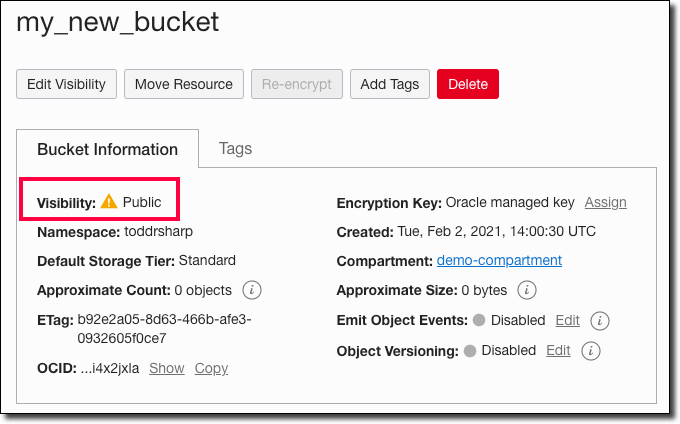
Oh, wait! We accidentally made this new bucket a public bucket! That won’t do - we’ll need to change this to private. Head back to our Terraform script, update the property and re-run our apply job.
resource "oci_objectstorage_bucket" "create_bucket" {
    # required
    compartment_id = var.compartment_ocid
    name = "my_new_bucket"
    namespace = var.bucket_namespace

    # optional
    access_type = "NoPublicAccess" # <---- updated
}
Run it again and notice that Terraform knows our state (the bucket exists) so it decides to update the bucket instead of creating a new bucket. It also points out the change in access type and tells us what it’s going to do.
$ terraform apply
oci_objectstorage_bucket.create_bucket: Refreshing state... [id=n/toddrsharp/b/my_new_bucket]

An execution plan has been generated and is shown below.
Resource actions are indicated with the following symbols:
  ~ update in-place

Terraform will perform the following actions:

  # oci_objectstorage_bucket.create_bucket will be updated in-place
  ~ resource "oci_objectstorage_bucket" "create_bucket" {
      ~ access_type           = "ObjectRead" -> "NoPublicAccess"
        id                    = "n/toddrsharp/b/my_new_bucket"
        name                  = "my_new_bucket"
        # (16 unchanged attributes hidden)
    }

Plan: 0 to add, 1 to change, 0 to destroy.

Changes to Outputs:
  ~ new_bucket = {
      ~ access_type                  = "ObjectRead" -> "NoPublicAccess"
        # (22 unchanged elements hidden)
    }

Do you want to perform these actions?
  Terraform will perform the actions described above.
  Only 'yes' will be accepted to approve.

  Enter a value: yes

oci_objectstorage_bucket.create_bucket: Modifying... [id=n/toddrsharp/b/my_new_bucket]
oci_objectstorage_bucket.create_bucket: Modifications complete after 3s [id=n/toddrsharp/b/my_new_bucket]

Apply complete! Resources: 0 added, 1 changed, 0 destroyed.
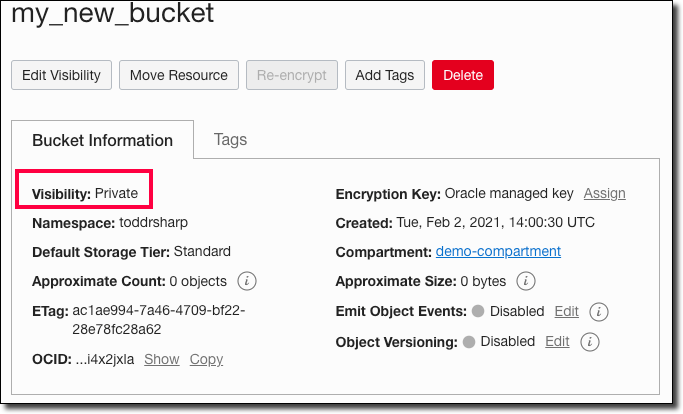
Confirm that the change was applied in the console.
How Can I Destroy, Roy?
If for some reason you would like to remove all of the infrastructure that was created with your Terraform project, you can run terraform destroy.
$ terraform destroy

An execution plan has been generated and is shown below.
Resource actions are indicated with the following symbols:
  - destroy

Terraform will perform the following actions:

  # oci_objectstorage_bucket.create_bucket will be destroyed
  - resource "oci_objectstorage_bucket" "create_bucket" {
      - access_type           = "NoPublicAccess" -> null
      - approximate_count     = "0" -> null
      - approximate_size      = "0" -> null
      - bucket_id             = "ocid1.bucket.oc1.[redacted]" -> null
      - compartment_id        = "ocid1.compartment.oc1..[redacted]" -> null
      - created_by            = "ocid1.user.oc1..[redacted]" -> null
      - defined_tags          = {
        } -> null
      - etag                  = "ac1ae994-7a46-4709-bf22-28e78fc28a62" -> null
      - freeform_tags         = {} -> null
      - id                    = "n/toddrsharp/b/my_new_bucket" -> null
      - is_read_only          = false -> null
      - metadata              = {} -> null
      - name                  = "my_new_bucket" -> null
      - namespace             = "toddrsharp" -> null
      - object_events_enabled = false -> null
      - replication_enabled   = false -> null
      - storage_tier          = "Standard" -> null
      - time_created          = "2021-02-02 14:00:30.676 +0000 UTC" -> null
      - versioning            = "Disabled" -> null
    }

Plan: 0 to add, 0 to change, 1 to destroy.

Changes to Outputs:
  - new_bucket = {
      - access_type                  = "NoPublicAccess"
      - approximate_count            = "0"
      - approximate_size             = "0"
      - bucket_id                    = "ocid1.bucket.oc1.[redacted]"
      - compartment_id               = "ocid1.compartment.oc1..[redacted]"
      - created_by                   = "ocid1.user.oc1..[redacted]"
      - defined_tags                 = {
        }
      - etag                         = "ac1ae994-7a46-4709-bf22-28e78fc28a62"
      - freeform_tags                = {}
      - id                           = "n/toddrsharp/b/my_new_bucket"
      - is_read_only                 = false
      - kms_key_id                   = null
      - metadata                     = {}
      - name                         = "my_new_bucket"
      - namespace                    = "toddrsharp"
      - object_events_enabled        = false
      - object_lifecycle_policy_etag = null
      - replication_enabled          = false
      - retention_rules              = []
      - storage_tier                 = "Standard"
      - time_created                 = "2021-02-02 14:00:30.676 +0000 UTC"
      - timeouts                     = null
      - versioning                   = "Disabled"
    } -> null

Do you really want to destroy all resources?
  Terraform will destroy all your managed infrastructure, as shown above.
  There is no undo. Only 'yes' will be accepted to confirm.

  Enter a value: yes

oci_objectstorage_bucket.create_bucket: Destroying... [id=n/toddrsharp/b/my_new_bucket]
oci_objectstorage_bucket.create_bucket: Destruction complete after 3s

Destroy complete! Resources: 1 destroyed.
Summary
In this post, we installed Terraform and the Terraform OCI Provider and created, planned and applied our first Terraform script to manage infrastructure in the Oracle Cloud. It should be noted that the OCI Provider has full support for all infrastructure elements in the Oracle Cloud. Refer to the documentation for specific implementation details on the operation(s) that you need to perform in your tenancy. In our next post, we’ll get started with using Terraform in the Oracle Cloud instead of locally!
Photo by Daniel Páscoa on Unsplash