Easy and Secure Oracle Database Connections With Database Tools

There’s a brand new tool in town, and it’s ready to make your life a whole lot easier if you work with Oracle DB in the cloud. It’s called “Database Tools”, and despite the rather boring sounding name, I can assure you that this service is super, extra, magnificently awesome! If you’re a doc reader, have at ’em. But if you’re like me - an adventurer who jumps in head first - then let’s take a deep dive into Database Tools and see how to use them!
For your navigational pleasure, here is a Table of Contents:
- What Does It Do?
- How?
- Create a Vault
- Create a Connection With Database Tools
- Using the Connection
- Connecting and Querying Autonomous DB From Java
- Summary
What Does It Do?
Database Tools lets you create “Connections” to existing databases. These connections are a way to store all of the credentials that you need to connect to that database in a safe, secure place in the cloud. Why? Because security is important! Storing credentials offline can be a security risk and when you create a connection in the Oracle Cloud you can be assured that your credentials are encrypted and safe. Additionally, once they are created they can then be used to connect to other services in the Oracle Cloud like SQL Worksheets and SQLcl in the Cloud Shell without having to type a single username or password (and without downloading a wallet!).\
How?
Keep reading!
Create a Vault
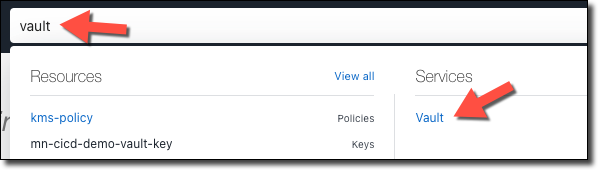
Before we create a connection, we’ll need to create (or make sure we already have) a ‘Vault’ in the Oracle Cloud. To do this, search for ‘Vault’ and select ‘Vault’ under ‘Services’.
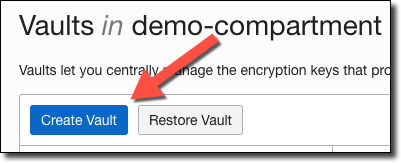
Click ‘Create Vault’ on the Vault list page.
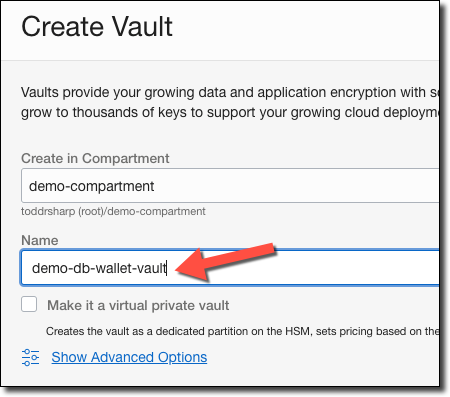
Name it.
Click ‘Create’ and wait a few minutes (security is paramount, but not always fast).
Create Key
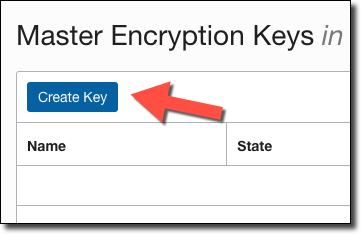
Once the vault is created, click on ‘Create Key’ Under ‘Master Encryption Keys’ in the vault details.
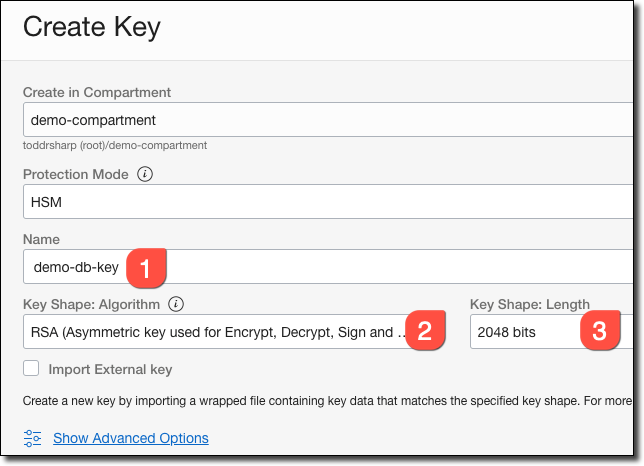
In the key details dialog, name it (#1), choose ‘RSA...’ (the key must be asymmetric - #2), and a Key Shape of ‘2048 bits’.
Create a Connection With Database Tools
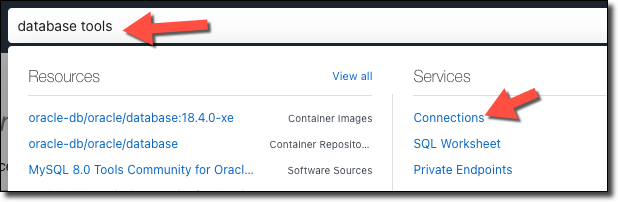
When the vault is ready, search for ‘database tools’ and select ‘Connections’.
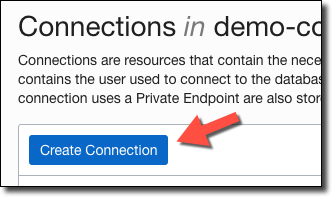
Click ‘Create Connection’.
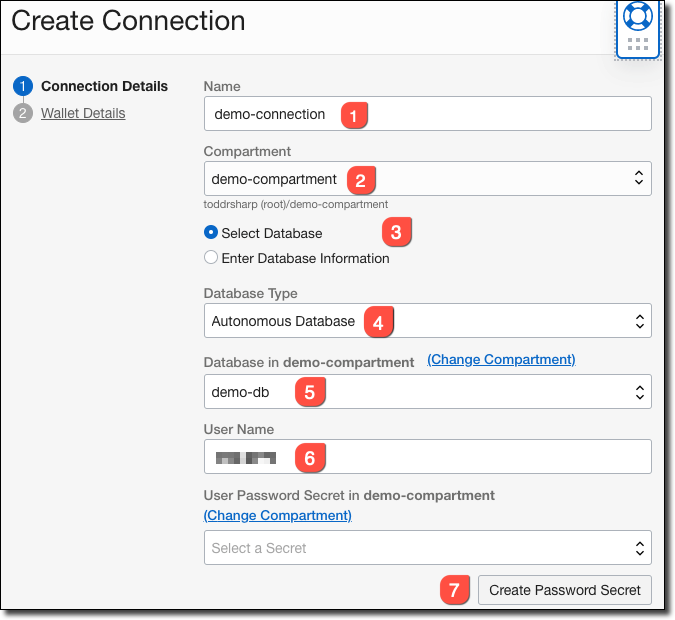
Name it (#1), select the compartment used to store it (#2), choose ‘Select Database’ (#3 - since we’re planning on using this with Autonomous DB), choose ‘Autonomous Database’ (#4), choose the DB’s compartment (#5), enter the ‘User Name’ (#6), and click ‘Create Password Secret’ (#7).
In the ‘Create Password Secret’ dialog, name the secret, choose the vault and encryption key, and enter/confirm the password.
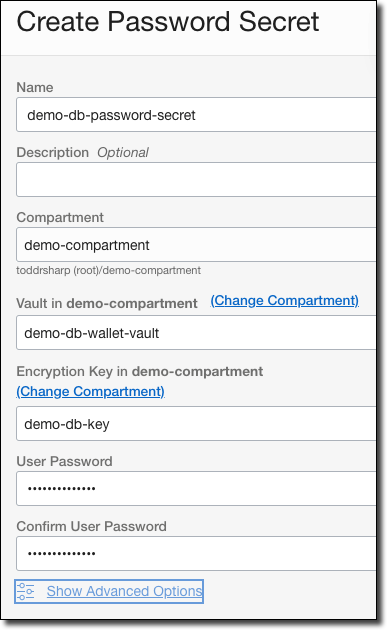
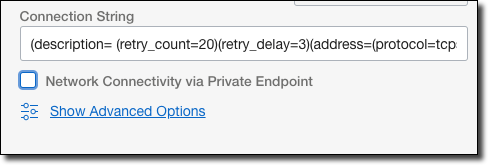
Uncheck ‘Network Connectivity via Private Endpoint’ (unless you intend to use a private endpoint).
On step 2, select ‘SSO Wallet’ under ‘Wallet Format’.
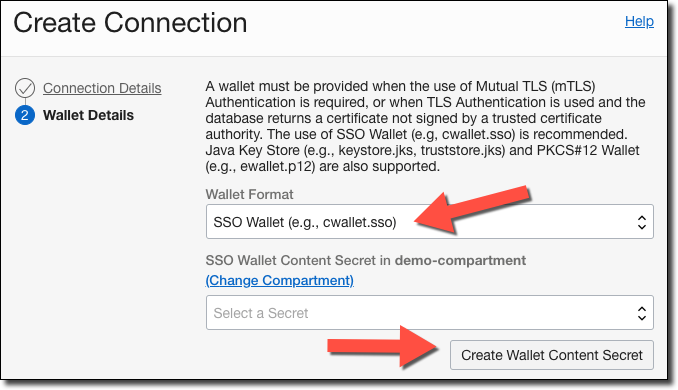
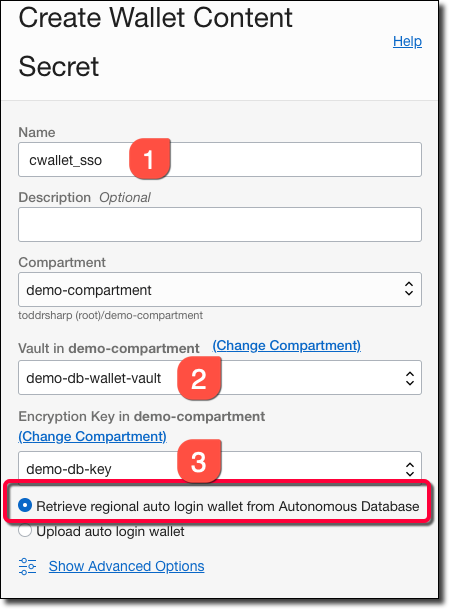
Click ‘Create Wallet Content Secret’ and then name your secret (#1), choose the vault to store it in (#2), the key to use to encrypt the secret (#3), and select ‘Retrieve regional auto login wallet from Autonomous Database’ to have the secret generated automatically for you (how nice!).
Click ‘Create’ and in just a few moments your Database Connection is ready to use!
Using the Connection
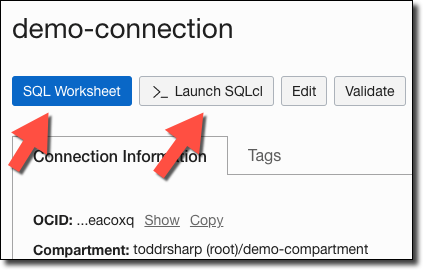
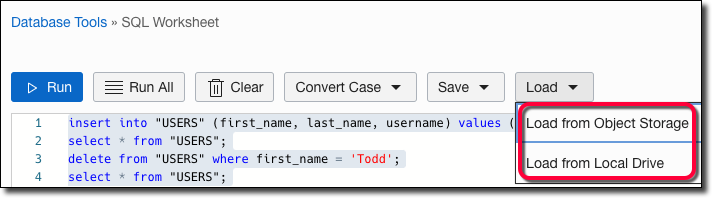
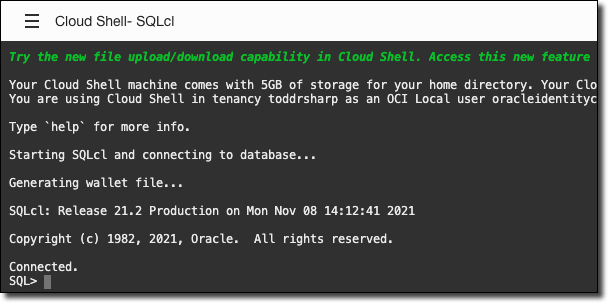
Now we can use the connection! On the connection details page, you can click either ‘SQL Worksheet’ or ‘Launch SQLcl’ to use the connection immediately.
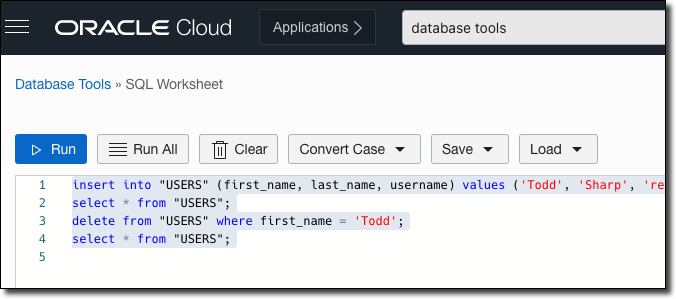
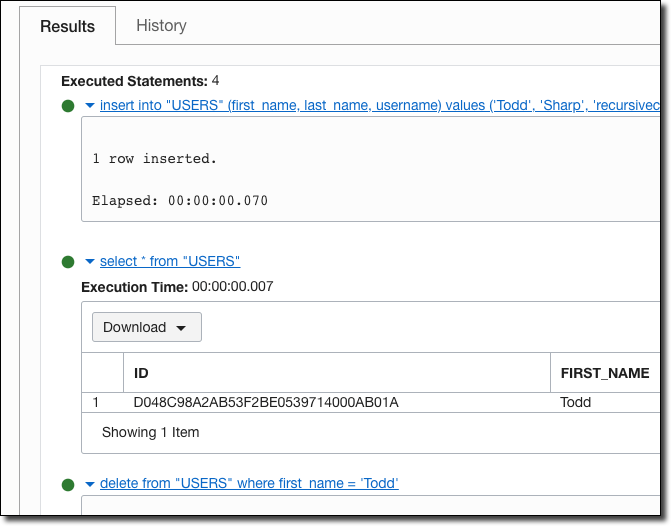
Launching a SQL Worksheet
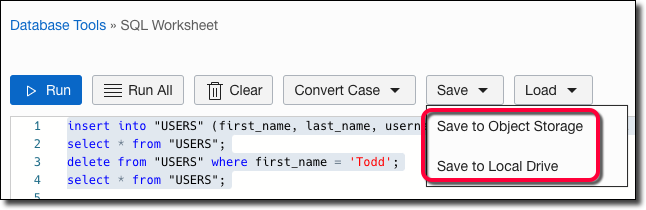
SQL Worksheet is a lightweight version of SQL Developer Web that allows you to save, load, and run simple queries against a connection.
Launching SQLcl in Cloud Shell
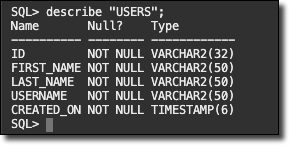
If your preference is command lines, clicking ‘Launch SQLcl’ will open Cloud Shell and automatically configure and connect to the database you specified in the connection.
Connecting and Querying Autonomous DB From Java
In cooler news for developers, Database Tools Connections can be retrieved via the OCI Java SDK. This means no storing credentials in code or environment variables or manually creating vault secrets for each and storing the OCIDs for each vault secret. You just need the OCID of the Database Tools Connection and the SDK does the rest! Let’s look at an example using Java to retrieve the connection and use it to query Autonomous DB.
Dependencies
First, you’ll need some dependencies. We need a few modules from the OCI Java SDK (to retrieve the connection and the secret content).
implementation 'com.oracle.oci.sdk:oci-java-sdk-common:2.8.1'
implementation 'com.oracle.oci.sdk:oci-java-sdk-databasetools:2.8.1'
implementation 'com.oracle.oci.sdk:oci-java-sdk-secrets:2.8.1'
And we’ll need the OJDBC driver:
implementation("com.oracle.database.jdbc:ojdbc11-production:21.1.0.0")Retrieving Database Connection Info
Next, create a class. I’m calling mine Demo.java. We’ll need to pass in the OCID of the connection that we created earlier, and in the constructor, we’ll set up a few clients to make calls to the SDK.
public class Demo {

    private final String connectionId;
    DatabaseToolsClient databaseToolsClient;
    SecretsClient secretsClient;

    public Demo(String connectionId) throws IOException {
        this.connectionId = connectionId;
        AbstractAuthenticationDetailsProvider provider = new ConfigFileAuthenticationDetailsProvider("DEFAULT");
        databaseToolsClient = DatabaseToolsClient.builder().build(provider);
        secretsClient = SecretsClient.builder().build(provider);
    }
}
Instead of returning the secrets directly, the SDK will return OCIDs pointing to the secret in the vault. Once the content is retrieved, we’ll need to decode them from Base64, so create an instance of the Base64.Decoder.
/* for decoding secrets after they are retrieved */
Base64.Decoder decoder = Base64.getDecoder();
Now we can construct a request to get the DatabaseToolsConnection and use the client to send the request.
/* get database tools connection */
GetDatabaseToolsConnectionRequest connectionRequest =
        GetDatabaseToolsConnectionRequest.builder()
        .databaseToolsConnectionId(connectionId)
        .build();
GetDatabaseToolsConnectionResponse connectionResponse = databaseToolsClient
        .getDatabaseToolsConnection(connectionRequest);
DatabaseToolsConnectionOracleDatabase databaseToolsConnection =
        (DatabaseToolsConnectionOracleDatabase) connectionResponse
        .getDatabaseToolsConnection();
Grab the connect string and username:
/* get connect string from dbtools connection */
String connectionString = databaseToolsConnection.getConnectionString();
System.out.printf("Connection String: %s %n", connectionString);

/* get username from dbtools connection */
String username = databaseToolsConnection.getUserName();
System.out.printf("Username: %s %n", username);
If you’re interested, grab the KeyStore type:
List<DatabaseToolsKeyStore> keyStores = databaseToolsConnection.getKeyStores();
KeyStoreType keyStoreType = keyStores.get(0).getKeyStoreType();
System.out.printf("KeyStore Type: %s %n", keyStoreType);
Next, grab the KeyStore secret contents OCID and make a request via the SecretsClient to retrieve the content and decode it.
DatabaseToolsKeyStoreContentSecretId keyStoreSecretId =
        (DatabaseToolsKeyStoreContentSecretId) keyStores
        .get(0)
        .getKeyStoreContent();
String keyStoreContentSecretId = keyStoreSecretId.getSecretId();
GetSecretBundleRequest keyStoreContentRequest = GetSecretBundleRequest
        .builder()
        .secretId(keyStoreContentSecretId)
        .build();
GetSecretBundleResponse keyStoreContentResponse = secretsClient
        .getSecretBundle(keyStoreContentRequest);
Base64SecretBundleContentDetails keyStoreSecretContent =
        (Base64SecretBundleContentDetails) keyStoreContentResponse
        .getSecretBundle()
        .getSecretBundleContent();
String keyStoreSecret = keyStoreSecretContent.getContent();
byte[] keyStoreSecretBytes = decoder.decode(keyStoreSecret);
Similarly, grab the DB password secret OCID, construct a request, retrieve the secret and decode it.
DatabaseToolsUserPasswordSecretId passwordSecretId =
        (DatabaseToolsUserPasswordSecretId) databaseToolsConnection
        .getUserPassword();
GetSecretBundleRequest passwordSecretBundleRequest =
        GetSecretBundleRequest.builder()
        .secretId(passwordSecretId.getSecretId())
        .build();
GetSecretBundleResponse passwordSecretBundleResponse = secretsClient
        .getSecretBundle(passwordSecretBundleRequest);
Base64SecretBundleContentDetails passwordSecretBundleContent =
        (Base64SecretBundleContentDetails) passwordSecretBundleResponse
        .getSecretBundle()
        .getSecretBundleContent();
byte[] decodedBytes = decoder.decode(passwordSecretBundleContent.getContent());
String password = new String(decodedBytes);
System.out.printf("Password: %s %n", password);
Creating a Datasource and Querying It
Now we can start creating our datasource. First, create a Properties object to store the username and password and construct the URL from the connect string.
/* create datasource properties */
Properties info = new Properties();
info.put(OracleConnection.CONNECTION_PROPERTY_USER_NAME, username);
info.put(OracleConnection.CONNECTION_PROPERTY_PASSWORD, password);

String dbUrl = "jdbc:oracle:thin:@" + connectionString;
Now we can create an “in-memory” wallet from the decoded bytes of our SSO secret contents and create an SSL context that we’ll set on our DataSource in just a bit. Huge credit to Simon for his examples on GitHub!
/* create "in-memory" wallet */
TrustManagerFactory trustManagerFactory =
        TrustManagerFactory.getInstance(TrustManagerFactory.getDefaultAlgorithm());
KeyManagerFactory keyManagerFactory =
        KeyManagerFactory.getInstance(TrustManagerFactory.getDefaultAlgorithm());
KeyStore keyStore = KeyStore.getInstance("SSO", new OraclePKIProvider());
keyStore.load(new ByteArrayInputStream(keyStoreSecretBytes), null);
keyManagerFactory.init(keyStore, null);
trustManagerFactory.init(keyStore);
SSLContext sslContext = SSLContext.getInstance("SSL");
sslContext.init(
        keyManagerFactory.getKeyManagers(),
        trustManagerFactory.getTrustManagers(),
        null);
Create the OracleDataSource, set the SSL context, URL, and connection properties.
/* create datasource */
OracleDataSource datasource = new OracleDataSource();
datasource.setSSLContext(sslContext);
datasource.setURL(dbUrl);
datasource.setConnectionProperties(info);
Finally, create a Connection and execute a query.
/* get connection and execute query */
Connection connection = datasource.getConnection();
Statement statement = connection.createStatement();
ResultSet resultSet = statement.executeQuery("select sysdate from dual");
resultSet.next();
Date d = resultSet.getDate(1);
System.out.printf("Current Date from DB: %tc", d);
If all goes well, your output should look similar to the following when you use this class.
Connection String: (description= (...[redacted])
Username: [redacted]
KeyStore Type: Sso
Password: [redacted]
Current Date from DB: Wed Nov 10 14:28:31 EST 2021
Summary
In this post, we learned about the new Database Tools available in the Oracle Cloud Console. We created a connection and used that connection to launch a SQL Worksheet, and Cloud Shell instance with SQLcl. We then looked at how to download the connection info with the OCI Java SDK and use the info in the connection to create an in-memory wallet and datasource to query Autonomous DB. If you’d like to see this example in its entirety, check it out on GitHub.
Photo by Hunter Haley on Unsplash